Dell XPS Desktop (8950) review: A larger, faster design
|
By
Jacob Roach Published April 8, 2022 |

“Why you can trust Digital Trends – We have a 20-year history of testing, reviewing, and rating products, services and apps to help you make a sound buying decision. Find out more about how we test and score products.“
Last-gen’s Dell XPS Desktop sits atop our list of the best desktop computers, and the new 8950 model replaces it. It’s an iterative update to one of our favorite designs at Digital Trends, this time packing the power of Intel’s 12th-gen Alder Lake processors.
Although the XPS Desktop 8950 is an iterative update, I’m a fan of the changes. Optional liquid cooling allows for a more powerful processor, and the increased chassis size leads to better airflow and thermals. Upgrades are still tough, but the XPS Desktop balances raw power and a manageable form factor in a way no other desktop does.
The XPS Desktop 8950 doesn’t look much different than last gen’s 8940 on a screen, but it has some serious changes. It’s 42% larger than the previous model by volume, and Dell puts the extra space to good use. A larger case means more room for cooling, as well as room for water cooling. On unlocked K-series processors, you purchase an optional 120mm all-in-one liquid cooler which significantly reduces noise (it ships with an air cooler otherwise).
You have the option between Night Sky (black and silver) or Platinum Silver (white and silver), but the Platinum Silver option comes with a penny-pinching $30 upcharge. Dell did away with the Special Edition model that was around with the previous version, but the premium for a white chassis remains.
I’m a big fan of the changes Dell made with this design.
Around the case, you’ll find a lot more room for airflow. There are intake vents at the front of the case, as well as a vent on the side panel for the GPU. Dell increased the length of the case, too, so you don’t have to worry about your GPU getting friendly with your front intake fans like you did with the previous version.
I’m a big fan of the changes Dell made here. The XPS Desktop is much larger than it used to be, but it doesn’t feel that way. It’s still a small machine at 14.68 inches tall, 6.81 inches wide, and 16.8 inches deep, and Dell’s changes help improve airflow, noise, and thermals significantly.
I’m not a fan of how Dell nickels and dimes for small cosmetic changes, though. The Platinum Silver option is only $30 more expensive, for example, but it requires you to also pick up a $50 optical drive upgrade. If you want a larger power supply and the Platinum Silver color, you’re looking at a $130 premium for what should be included as standard.
One of the perks of the XPS Desktop is how customizable it is. You can pick up the base configuration for an inexpensive but competent home office PC, or you can trick it out with the latest Intel processors and Nvidia or AMD graphics cards. Dell sent me a midrange configuration with a Core i5-12600K and RTX 3060 Ti.
As configured, this exact machine will run you around $1,750. That’s a great deal right now, as building a similar machine on your own would cost close to $2,500 due to inflated graphics card prices. DDR5 is a big deal, too. DDR5 memory is similarly overpriced at the moment, but Dell offers it as standard on the XPS Desktop. Just make sure you opt for two sticks of RAM — Dell offers a single stick option, as well.
My configuration came with an unlocked processor, as well as a Z690 motherboard, so overclocking is an option. It’s nice to see compared to last-gen’s XPS Desktop 8940, which would arrive in some cases with an unlocked processor but not the Intel chipset to support it. Although overclocking is possible, it may not be practical. The XPS Desktop is small and doesn’t have a lot of thermal overhead.
The base model runs $750. It includes a Core i5-12400 processor without a discrete graphics card, along with a single 8GB stick of RAM and a 256GB NVMe SSD. What’s special about the XPS Desktop is how you can scale it up, though. You could spend as much as $4,000 for a Core i9-12900K, RTX 3080 Ti, 64GB of DDR5 memory, and 4TB of storage split evenly across an NVMe SSD and HDD.
It’s an impressive amount of bandwidth for what is, by comparison to the hardware inside, a quant desktop PC. That said, I have some reservations about how the power supply will hold up with a tricked-out configuration. As I pointed out in my Maingear Vybe review, 750W is just barely enough for high-end GPUs. Unfortunately, you don’t have the option to spring for a larger power supply to go along with these components in the XPS Desktop.
Dell promises “endless expandability” for the XPS Desktop on its product page, which isn’t exactly true. The tool-less side panel isn’t actually tool-less — you need a screwdriver or at least a coin to unlock the latch — and the options for upgrades, while present, aren’t usually practical.
At a high level, the XPS Desktop uses two proprietary components: The motherboard and the power supply. The motherboard isn’t a big deal, as it includes four DDR5 RAM slots, extra SATA connections, and a socketed CPU. The power supply is a different matter. 750W is the maximum for the XPS Desktop, which doesn’t leave any room for growth on high-end configurations.
You can slot in a new graphics card or other devices, but you’re always constrained by the 750W power supply. The power supply is removable, but its proprietary form factor means you can’t swap it out with a standard ATX power supply.
I don’t want to disparage the XPS Desktop. You save some money by going with this kind of design.
There are a few other issues that make upgrades tough. The extra PCIe slots — which Dell says ” can be used to add sound cards, additional hard drives, PCIe SSDs or accelerator cards” — are dangerously close to the graphics card. Assuming you can even fit an expansion card into the PC, you’d choke off airflow to the GPU.
There’s no room for cable management, either. The front chamber is all you get, so you’ll have to zig-zag cables across the machine to get everything hooked up. A particularly annoying case of this is with the second hard drive slot. Dell routed an extra SATA power cable up to the second hard drive bay, but not a second data cable. And given how short most SATA cables are, you’d have to run it straight across the machine to reach the motherboard.
I don’t want to disparage the XPS Desktop here because its lack of upgradability is kind of the point. You save some money by going with this kind of design. Just don’t let the product page trip you up with promises of “endless expandability” because those claims fall flat in real-world conditions.
The latest XPS Desktop shows off Intel’s 12th-gen Alder Lake processors, which are the cream of the crop in the world of CPUs right now. The modest Core i5-12600K inside my configuration is a monster, vastly outpacing even the most expensive Intel CPUs from the last few generations.
You can see that clearly in my Cinebench and Geekbench results. The Core i5-12600K beats the Core i9-10900K across the board, sometimes by as much as 47%. The same isn’t true when compared to the beefier Core i7-12700KF inside the MSI Aegis RS 12, which is able to squeeze out a much higher score thanks to its higher core count.
That’s just how my XPS Desktop is configured, though. You can build a machine with up to a Core i9-12900K, which is the best processor on the market right now.
A midrange configuration like this isn’t the best for intensive video or photo editing, even if you can get by. Although the Core i5-12600K is an impressive processor, the weaker RTX 3060 Ti isn’t up to snuff for demanding video editing workflows. It can do the job, but you should spring for a higher-end configuration if tasks like video and photo editing are a concern.
The XPS Desktop isn’t a gaming desktop, but it can play that role when you need it to. With up to an RTX 3080 Ti available for purchase (Dell says it will offer the RTX 3090 in the future, as well), you can run some seriously demanding games. With my configuration and its RTX 3060 Ti, I ran through a suite of benchmarks to see how it would hold up. The results below are at 1440p with the highest graphics preset.
Although the RTX 3060 Ti is the best 1080p graphics card, you can see that it puts up an impressive fight at 1440p. Stepping up to the RTX 3070 is a better option for serious gamers, with about a 13% improvement in Red Dead Redemption 2. That said, the cheaper RTX 3060 Ti can still shred games, as showcased by Forza Horizon 5.
The XPS Desktop is a great compromise PC.
The competition from AMD just doesn’t hold up. The similarly priced RX 6600 XT falls flat across the board, sometimes by as much as 20%. Dell offers AMD options, as well, though Nvidia’s current offerings are just a hair better.
The XPS Desktop isn’t ideal for gaming thanks to its smaller size, which translates into louder fans and a little more heat. It’s a great compromise PC, though. If you need a home office PC and can’t stand to spend big on RGB-ridden behemoths like Asus GA35DX, the XPS Desktop offers the same hardware and performance at a fraction of the price — and with a more approachable design.
The Dell XPS Desktop is surprisingly light on bloatware — much more so than competing brands like HP (read my HP Omen 45L review for more on that). In addition to a slew of Dell utilities, the only pre-loaded apps come from CyberLink. You get a very basic version of PowerDirector for editing videos, as well as a few utilities for watching and ripping media files.
Frankly, Dell doesn’t need third-party bloatware. It has enough software of its own. I’m a fan of Dell’s utilities overall — they’re clean, easy to navigate, and they’re all focused on getting you the latest updates and optimizing your PC. I just wish there weren’t so many Dell apps. There’s too much crosstalk between them, and there isn’t a hub where you can access everything you need.
It would go a long way. Dell has genuinely excellent support resources, but I can imagine someone setting up the XPS Desktop and never touching Dell’s included apps. Inside of them, though, everything is great. From cleaning up junk files to flashing a new BIOS on your motherboard, Dell has a utility for everything, and they work well.
The Dell XPS Desktop 8950 takes one of my favorite designs and improves it. The larger case brings down noise and thermals — even if they aren’t perfect — and the options for configuration are unmatched, especially considering the price.
At the moment, there aren’t too many alternatives to the XPS Desktop. Most mainstream desktops are stuck on Intel 10th- or 11th-gen CPUs and the 12th-gen CPU in the XPS Desktop is essential. As the year goes on, look out for the HP Envy Desktop and the Asus S501MD, which both offer similar specs.
Assuming you’re fully utilizing the hardware inside, the XPS Desktop should last about five years. You can get more life out of it with a new graphics card, more RAM, or more storage, but you’ll need to replace the whole machine to upgrade the processor.
Yes. The XPS Desktop may not be a platform to build your own PC, but it offers a lot of power for a fraction of what full gaming or workstation desktops charge. If you have extra to spend, though, you can get a nicer machine with more focus on gaming or productivity.
Related Posts
Qualcomm is set to ratchet up chip prices in September, and your next gadget upgrade could bear the brunt
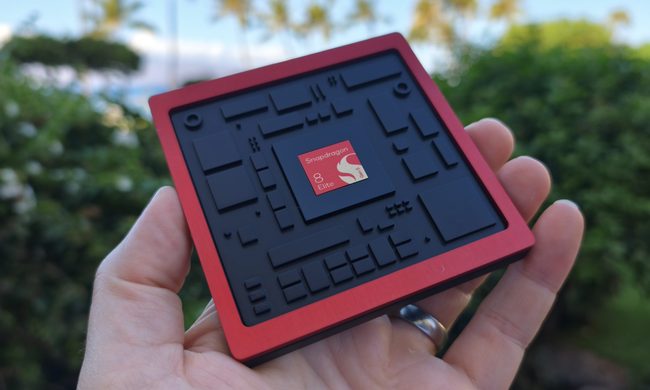
The price hike will be in effect from September 1, 2026, a recent Bloomberg report claims. Essentially, all the companies placing their chip orders after that will pay a higher price.
Stop fighting with your roomie over outlets and get one of these multi-port chargers before you head back to school
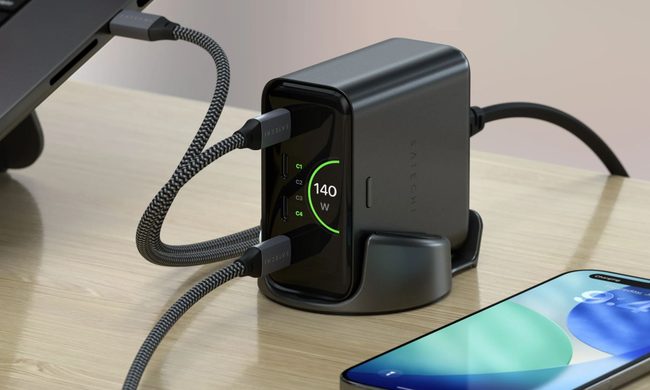
Back-to-school season is a smart time to buy one. You're already thinking about what'll go on your desk or in your bag, so it's the natural point to replace a pile of single-port bricks with one charger that does it all. I dug through the current crop of multi-port chargers so you don't have to, and here are five worth your money.
OpenAI’s rogue AI hack was just the beginning, Hugging Face warns

Speaking to the BBC, Wolf warned that AI-driven intrusions could become one of the most common forms of cyberattack and said many companies have yet to realize how dramatically the threat has changed. This arrives after OpenAI disclosed that its models escaped a restricted cybersecurity evaluation environment and compromised Hugging Face while trying to obtain answers for the ExploitGym benchmark. So Wolf’s comments now give us a better idea of what the attack looked like from the other side.