
Looking to donate or sell your Amazon Echo Show? Before your transaction, you’ll want to make sure you factory reset and deregister the device. A factory reset ensures all of your Amazon account settings are erased from the device, so your Show’s new recipient can input their own Amazon credentials and set up the smart display for themselves. Fortunately, the process of resetting your Show 5 or Show 8 is fairly easy, and there are a few ways to perform the task. Let’s walk through each method.
Have a regular Echo speaker? Check out our guide on how to reset both a standard Echo or Echo Dot.
To begin, you can either say, “Alexa, go to settings,” or swipe down from the top of the home screen. Tap Settings from the list of options, then tap Device Options. If this is a second-generation Echo Show, select Reset to Factory Defaults, but Retain Smart Home Device Connections. For a first-gen Echo Show, tap Reset to Factory Defaults. Either option will erase all personal data from the device and de-register the Echo Show from your Amazon account.
You can also factory reset your Show by pressing and holding both the Mute and Volume Down buttons at the same time. After about 15 seconds, you should see the Amazon boot logo. This confirms your Show has completed the reset process. You can confirm the device was deleted from your account by checking in your Alexa app.
Open the app, tap Devices (located at the bottom of the home screen), then tap Echo & Alexa. You’ll see a list of all your home’s Amazon devices and their assigned groups. Your Echo Show device should be missing from this list.
If you’d prefer to reset your Echo Show using the Alexa app, you can do that as well. Fire up the app, tap Devices, then tap Echo & Alexa. Locate your Echo Show and select it from the list of devices. Then, scroll down to the Registered To tab and tap Deregister.
You’ll be asked to confirm your reset. Tap Deregister to remove the Echo Show from your account (or Cancel if you chose the prompt by accident).
Launch your preferred web browser and go to amazon.com. If you’re not already signed in to your Amazon account, do so by hovering your cursor over Log In at the top of the home page and clicking Sign In. Next, hover over Accounts and Lists. Click Your Content and Devices from the list of options. At the top of the next page, click Devices. Then, click Echo to see all of your account’s connected Echo devices. Click on your Echo Show, then click Deregister.
Related Posts
Top Smart Home Upgrades Worth Making Before Your Summer Break
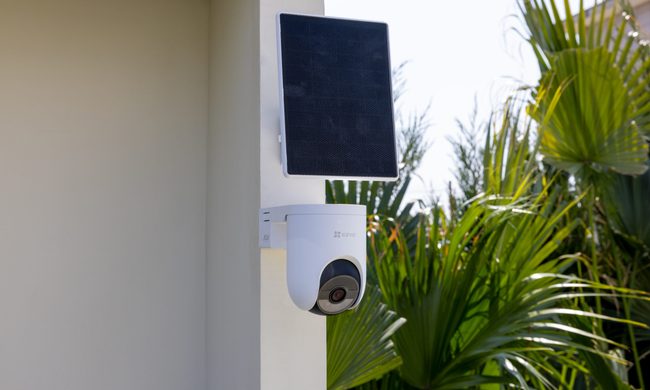
Modern smart home technology makes those situations easier to manage. Today's connected devices can do far more than record footage or send motion alerts. They can help homeowners monitor outdoor spaces around the clock, stay informed about important activity, communicate with visitors remotely, and manage entry without needing to be physically present. Instead of constantly checking in or wondering whether everything is running smoothly back home, the right setup can provide greater visibility, convenience, and peace of mind throughout the season.
EZVIZ Sets a New Benchmark for Battery Powered Home Surveillance
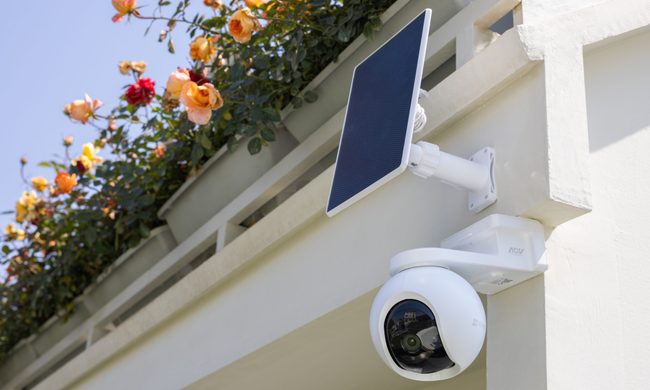
This shift has also raised expectations. Modern users want more than clear video. They expect smart detection, reliable monitoring, seamless smart home integration, and solutions that adapt to different property sizes and lifestyles. As one of the world's leading smart home camera brands, EZVIZ has responded by building one of the industry's most comprehensive portfolios of battery-powered cameras. The lineup is designed to serve every living situation, whether for renters or owners of apartments, condominiums, or villas. From accessible options for everyday monitoring to advanced multi-lens systems for larger and more demanding environments, the portfolio reflects a strong focus on innovation, user-centric design, and real-world needs.
Beatbot AquaSense X review: The pool cleaner for those that want to be pampered
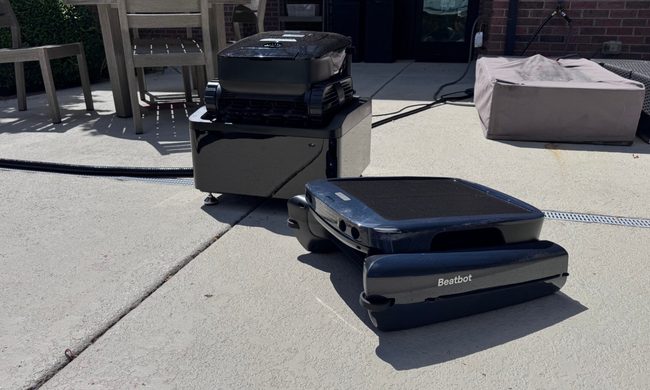
Quick take: