
Many of the best security cameras are produced by Arlo, which includes a variety of products designed for both indoor and outdoor use. They’ve grown increasingly popular over the years thanks to their easy installation process, impressive resolutions, and versatile smartphone app — allowing users to quickly get them placed on their property and working exactly as needed. However, some users have been running into an issue that puts their Arlo camera offline, essentially rendering it unusable.
If you’ve run into the issue, here’s how to figure out why your Arlo camera is offline, along with a few tips on how to fix the problem.
If your Arlo camera is offline, the first thing to do is start with your Wi-Fi router. Check to make sure your router is connected to the internet and that you’re not getting any errors. Consider cycling your router by unplugging it from the outlet, waiting a minute, then plugging it back in. You’ll also want to make sure your camera hasn’t been moved recently, as placing it too far away from your router could cause connection issues.
No luck after turning your router on and off? Then consider trying the same with your Arlo camera. Like all electronics, this simple step has been known to fix a variety of issues with Arlo cameras — especially if they’ve been running for months without a break. If you’re using a battery-powered camera, remove the battery, wait a minute, then reinsert it. If you’re using a wired camera, unplug it, wait a minute, then plug it back in.
Many Arlo cameras are designed to tolerate the great outdoors, but none are rated for use in extreme conditions. If you’re out in the summer heat of Phoenix or the extreme cold of Fairbanks, your Arlo camera will run into issues. This could manifest in the form of your product going offline. In this case, simply move your camera to a more temperate location until it returns to room temperature.
Arlo doesn’t recommend using third-party accessories such as power cables or solar panels, as these often result in compatibility issues. If you’ve recently installed other gear, consider removing it and checking to see if your device goes online. Arlo offers plenty of optional accessories, so if you want to expand your system, be sure to check out its collection.
If all else fails, you may have to perform a factory reset. This process varies slightly depending on your device, but you’ll typically need to hold down the Pairing Button for up to 25 seconds. You can also load up the Arlo app and remove it from your system.
Related Posts
Top Smart Home Upgrades Worth Making Before Your Summer Break
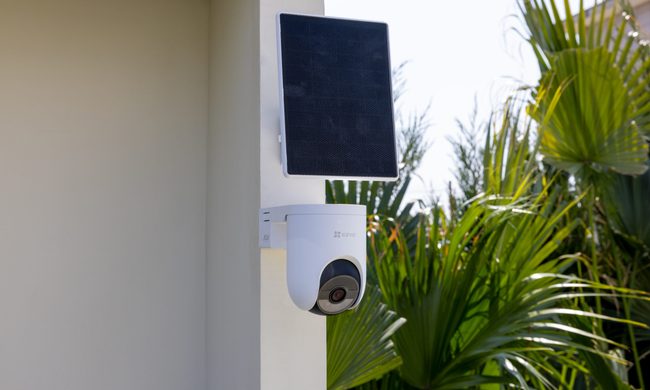
Modern smart home technology makes those situations easier to manage. Today's connected devices can do far more than record footage or send motion alerts. They can help homeowners monitor outdoor spaces around the clock, stay informed about important activity, communicate with visitors remotely, and manage entry without needing to be physically present. Instead of constantly checking in or wondering whether everything is running smoothly back home, the right setup can provide greater visibility, convenience, and peace of mind throughout the season.
EZVIZ Sets a New Benchmark for Battery Powered Home Surveillance
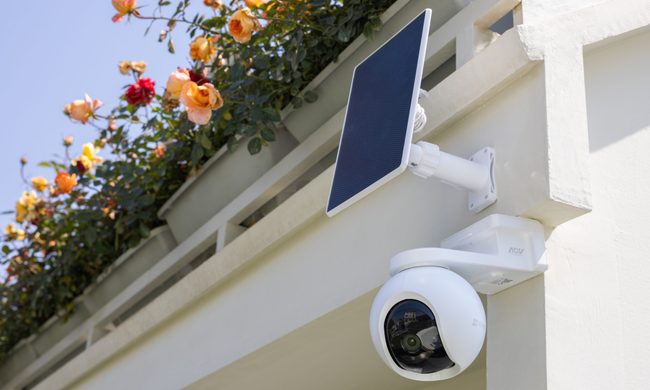
This shift has also raised expectations. Modern users want more than clear video. They expect smart detection, reliable monitoring, seamless smart home integration, and solutions that adapt to different property sizes and lifestyles. As one of the world's leading smart home camera brands, EZVIZ has responded by building one of the industry's most comprehensive portfolios of battery-powered cameras. The lineup is designed to serve every living situation, whether for renters or owners of apartments, condominiums, or villas. From accessible options for everyday monitoring to advanced multi-lens systems for larger and more demanding environments, the portfolio reflects a strong focus on innovation, user-centric design, and real-world needs.
Beatbot AquaSense X review: The pool cleaner for those that want to be pampered
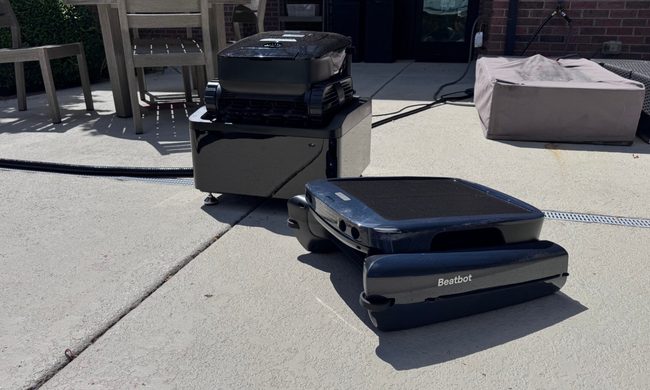
Quick take: